
Contents:
How to set up Intelligent Octopus Go
Charging with Intelligent Octopus Go
How to set up Intelligent Octopus Go
✅ Step 1: Open the Octopus Energy App
📲 In the app, go to the Devices tab (bottom menu) and tap Add Device.
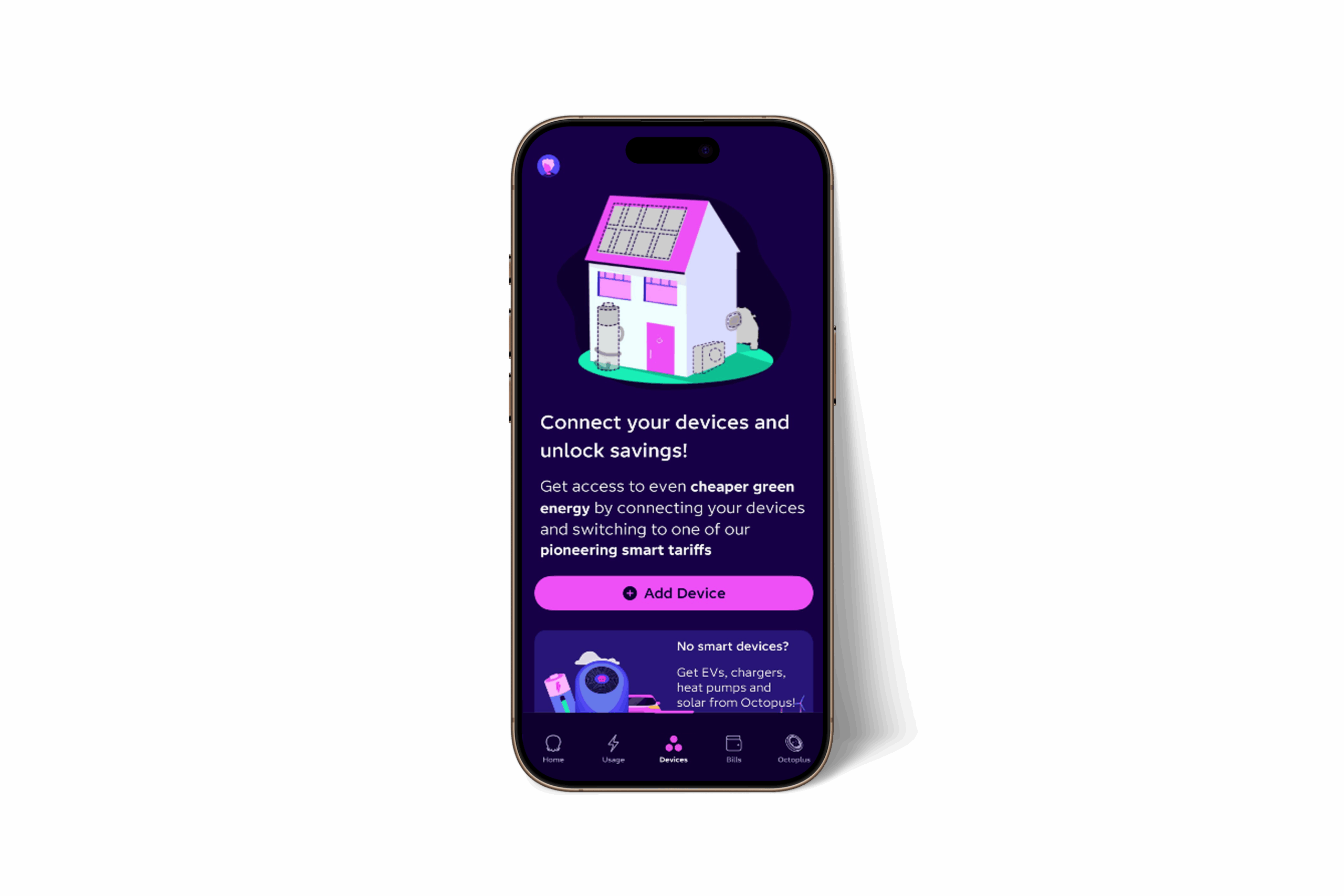
✅ Step 2: Select Your Device
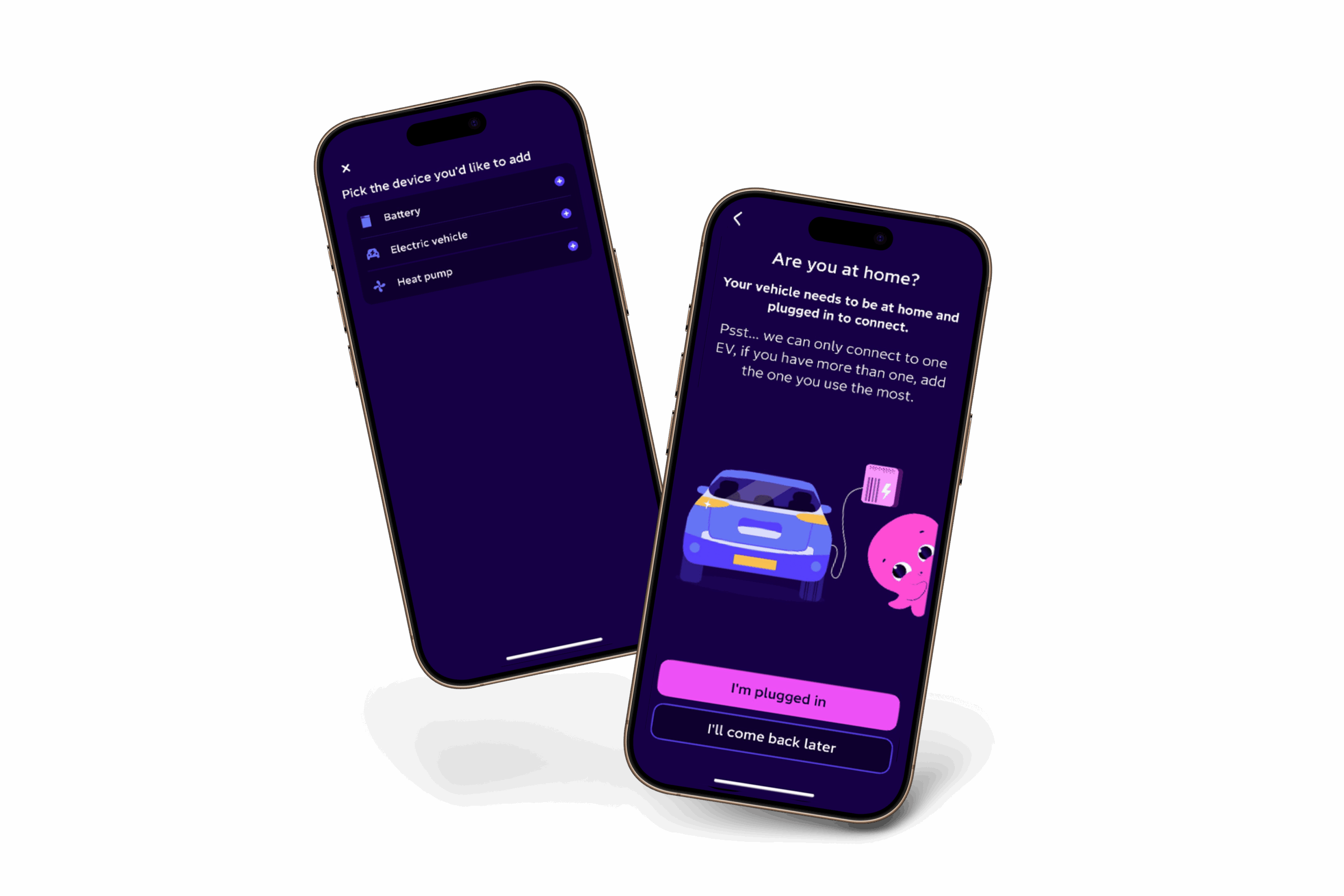
🔌 Choose Electric Vehicle when prompted.
Make sure:
- You’re at home.
- Your EV is plugged into your Indra charger.
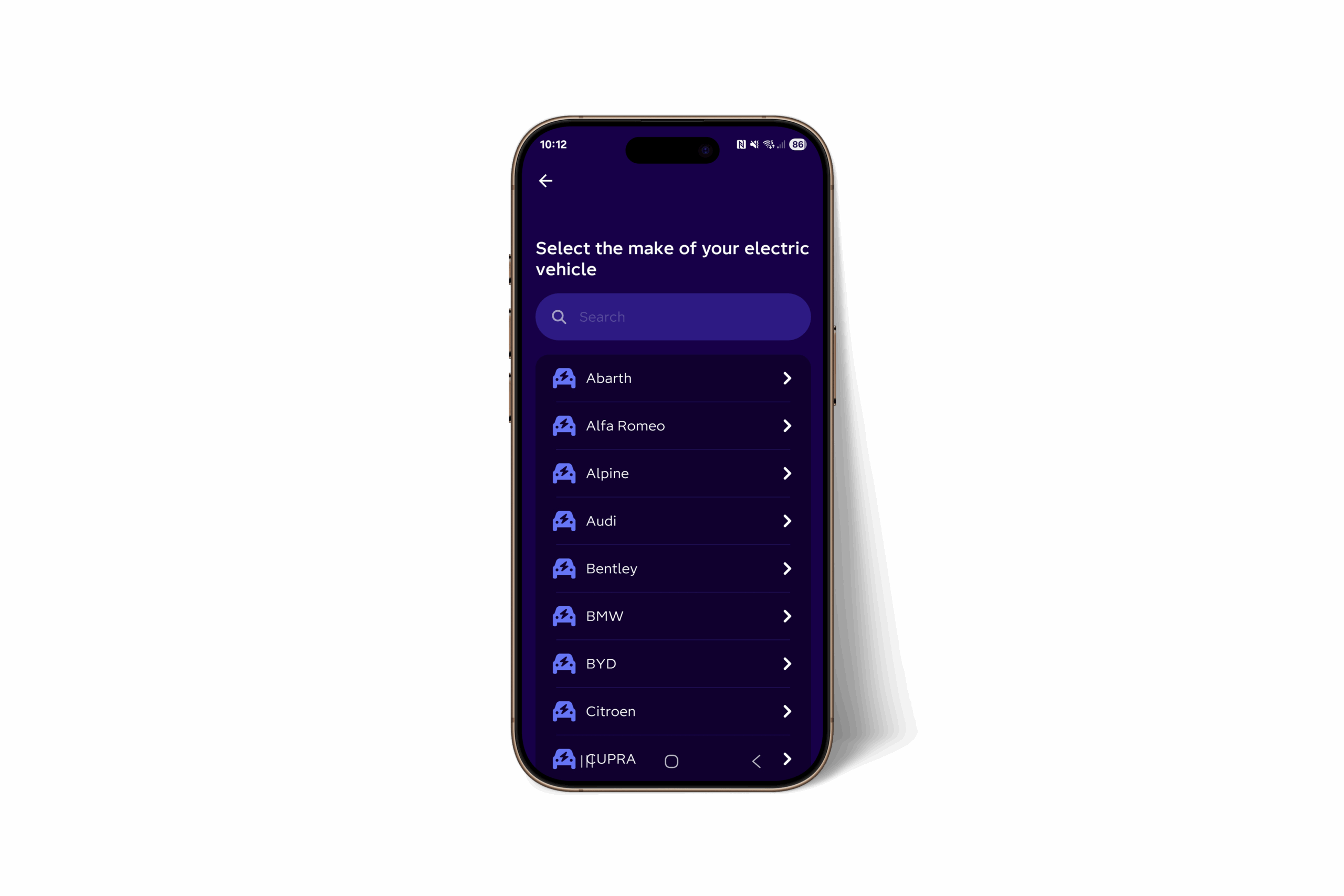
✅ Step 3: Select Your Vehicle
🚗 Pick your EV make and model so Octopus knows how much energy you’ll need.
If you have more than one EV, select the one you use most.
✅ Step 4: Select Your Indra Charger
⚡ After choosing your vehicle, select Indra as the charger manufacturer and pick your model.
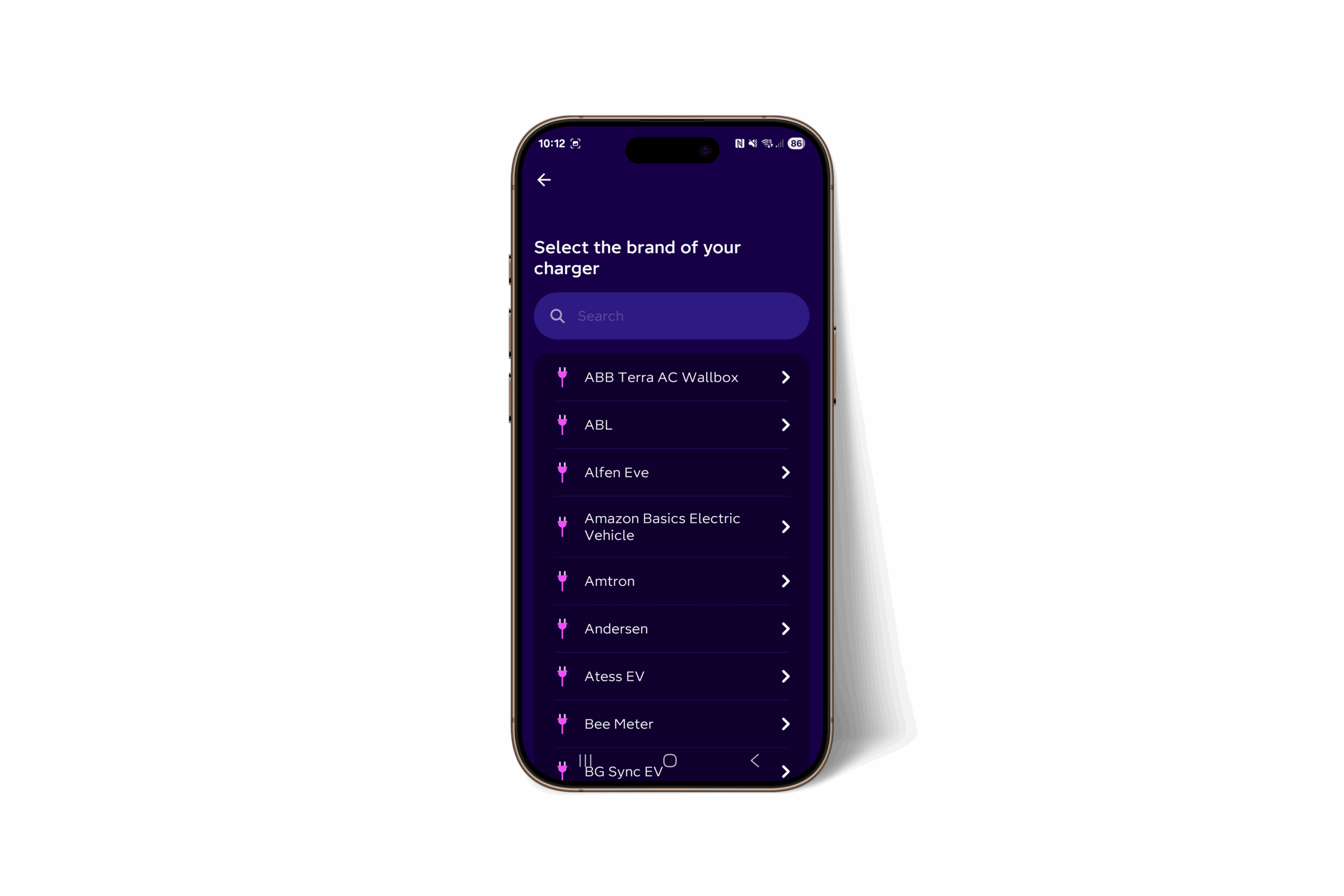
Egg-branded Smart PRO chargers are also able to be linked in this way.
If you're happy for Octopus to connect to your car, their app will take you through their connection process.
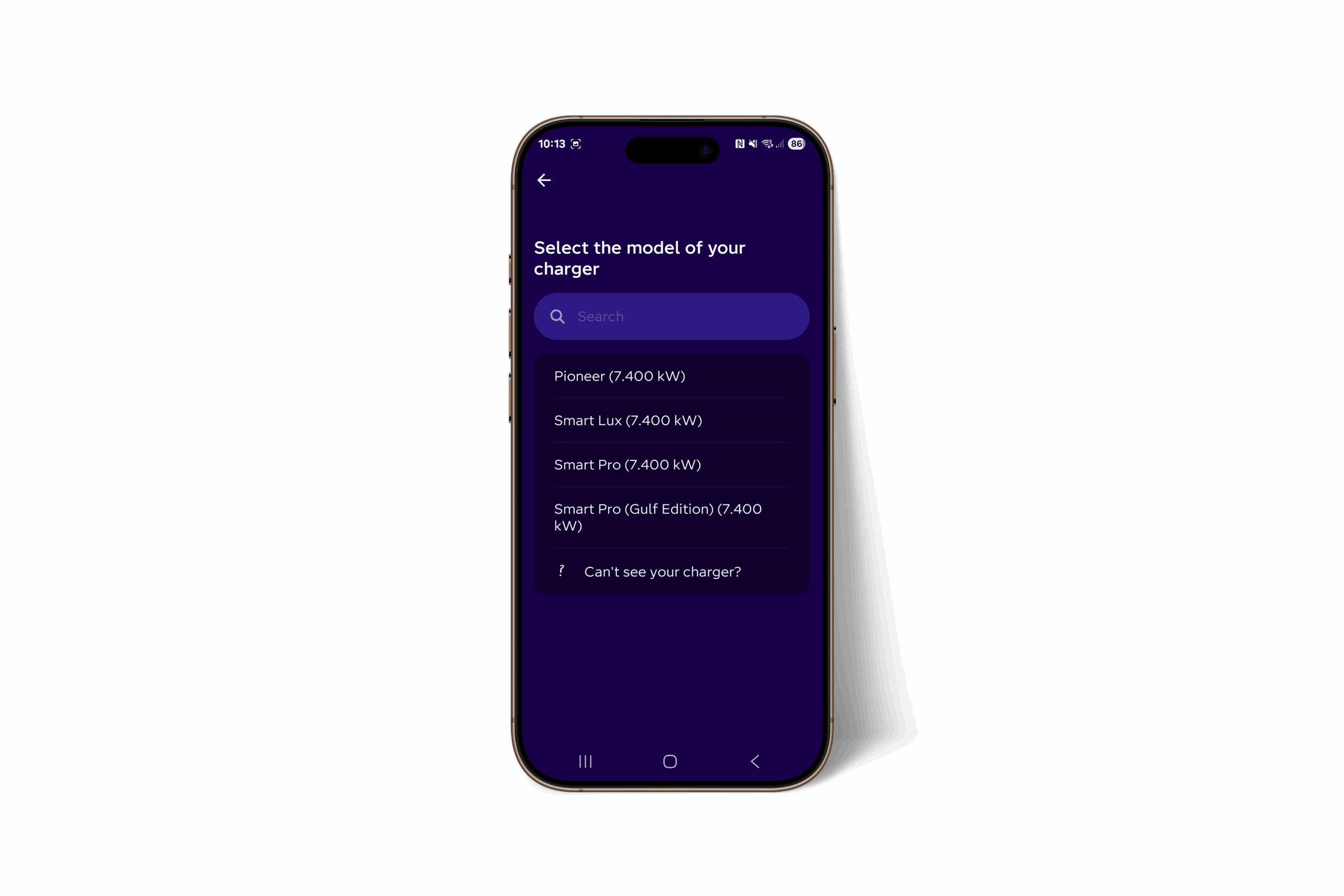
✅ Step 5: Connect
- If your car isn’t compatible, you can link Octopus directly to your charger instead.
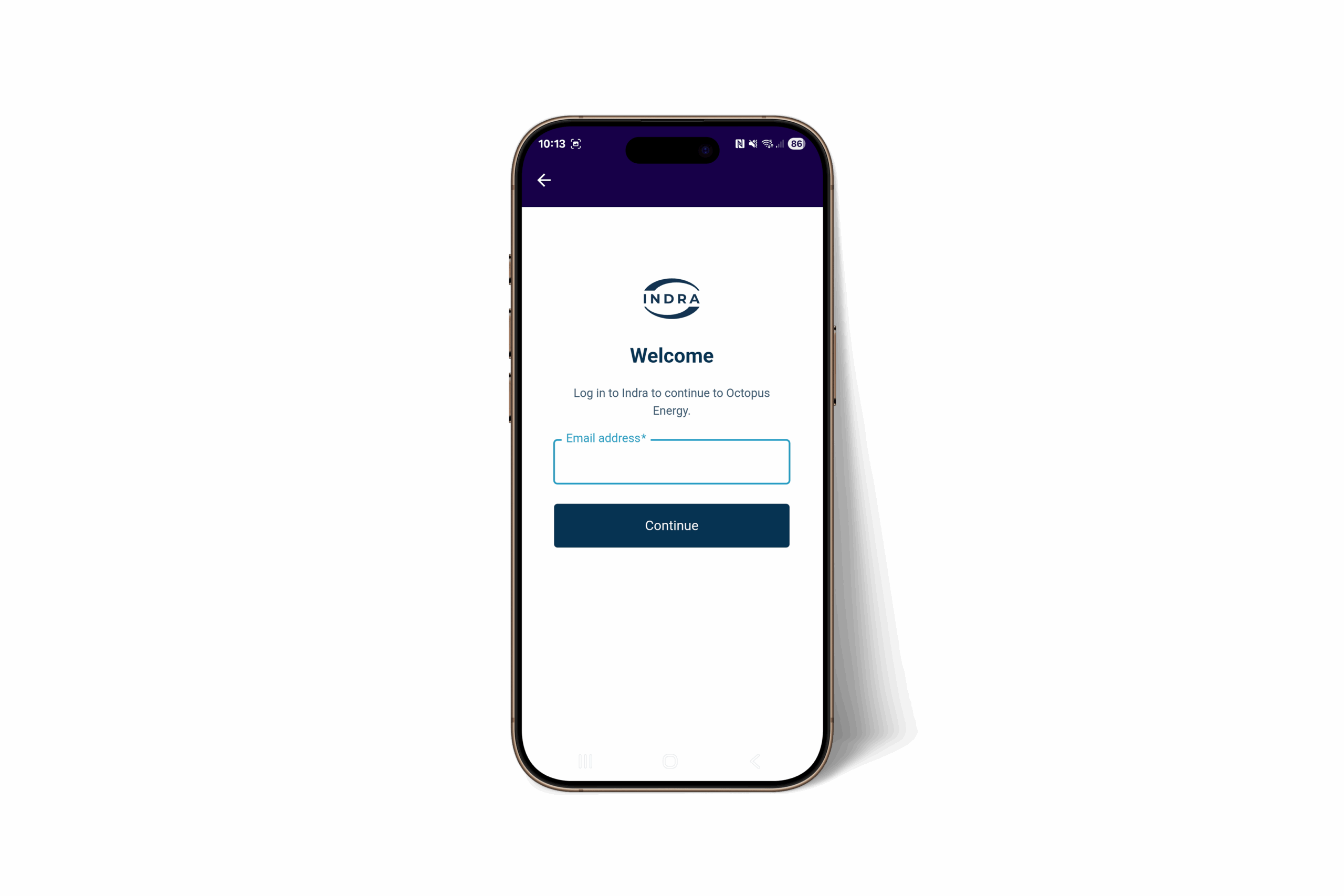
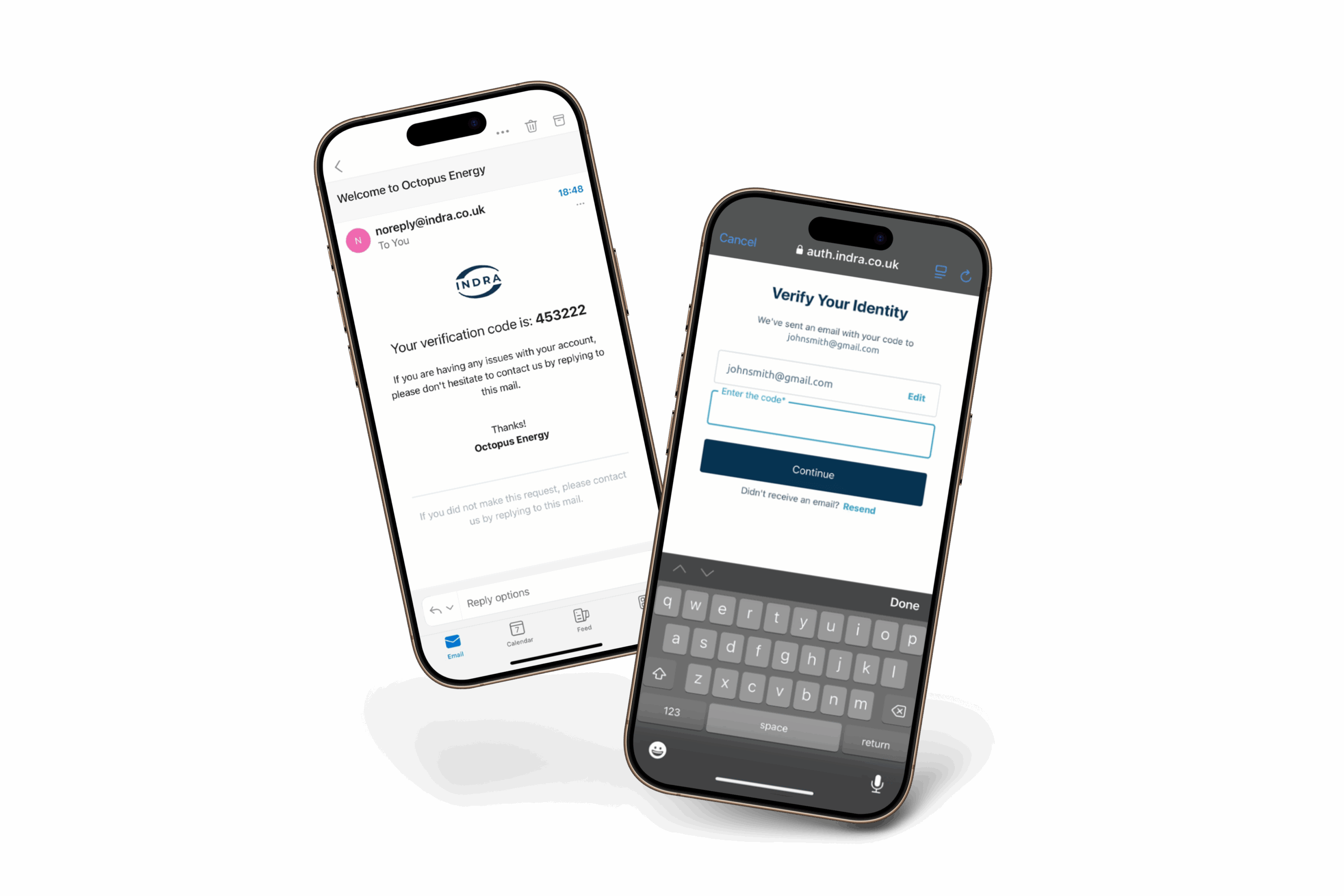
- The app will open the Indra login screen—enter your Indra account email and verify with the 6-digit code sent to your email.
- Click Agree and Connect to finish.
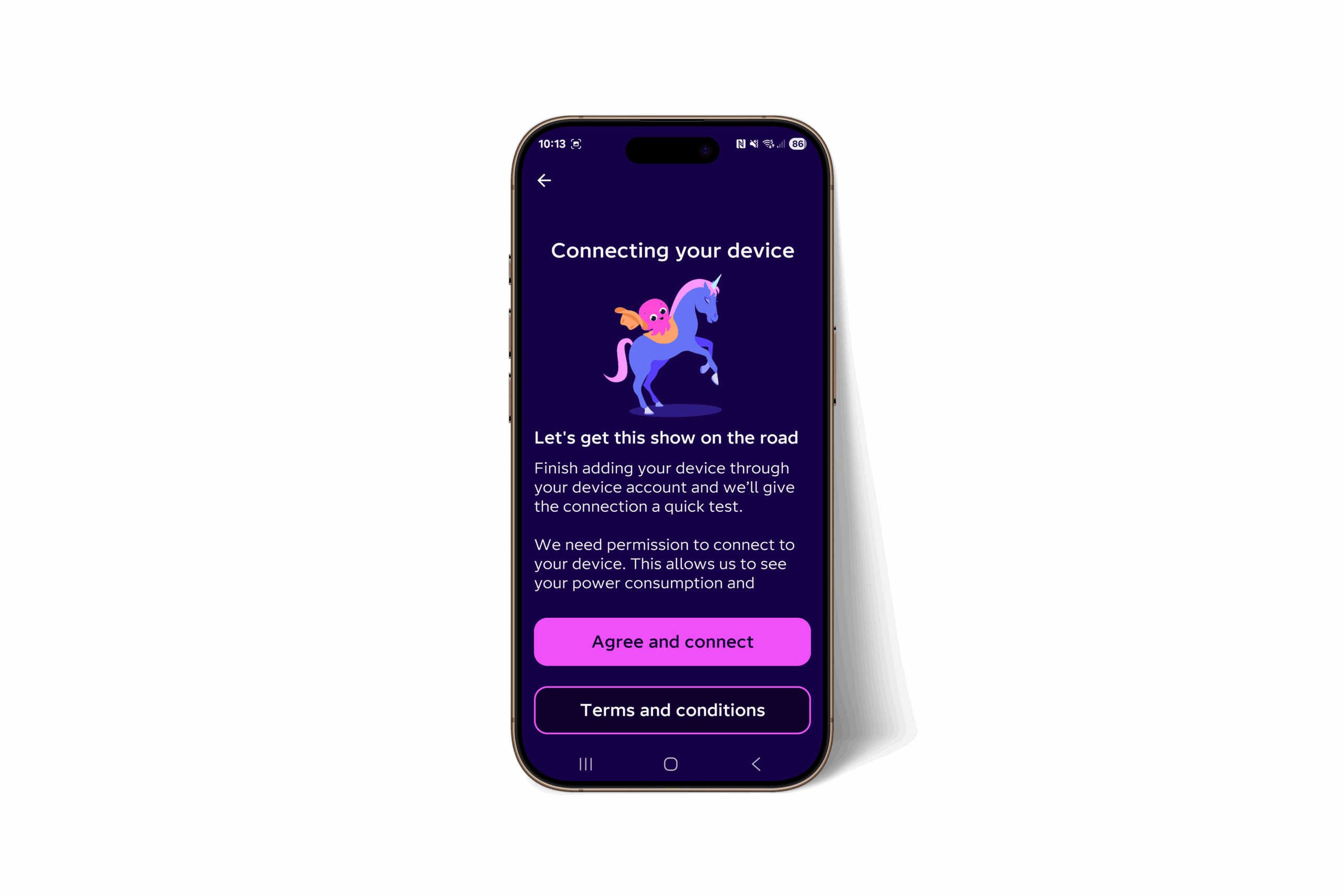
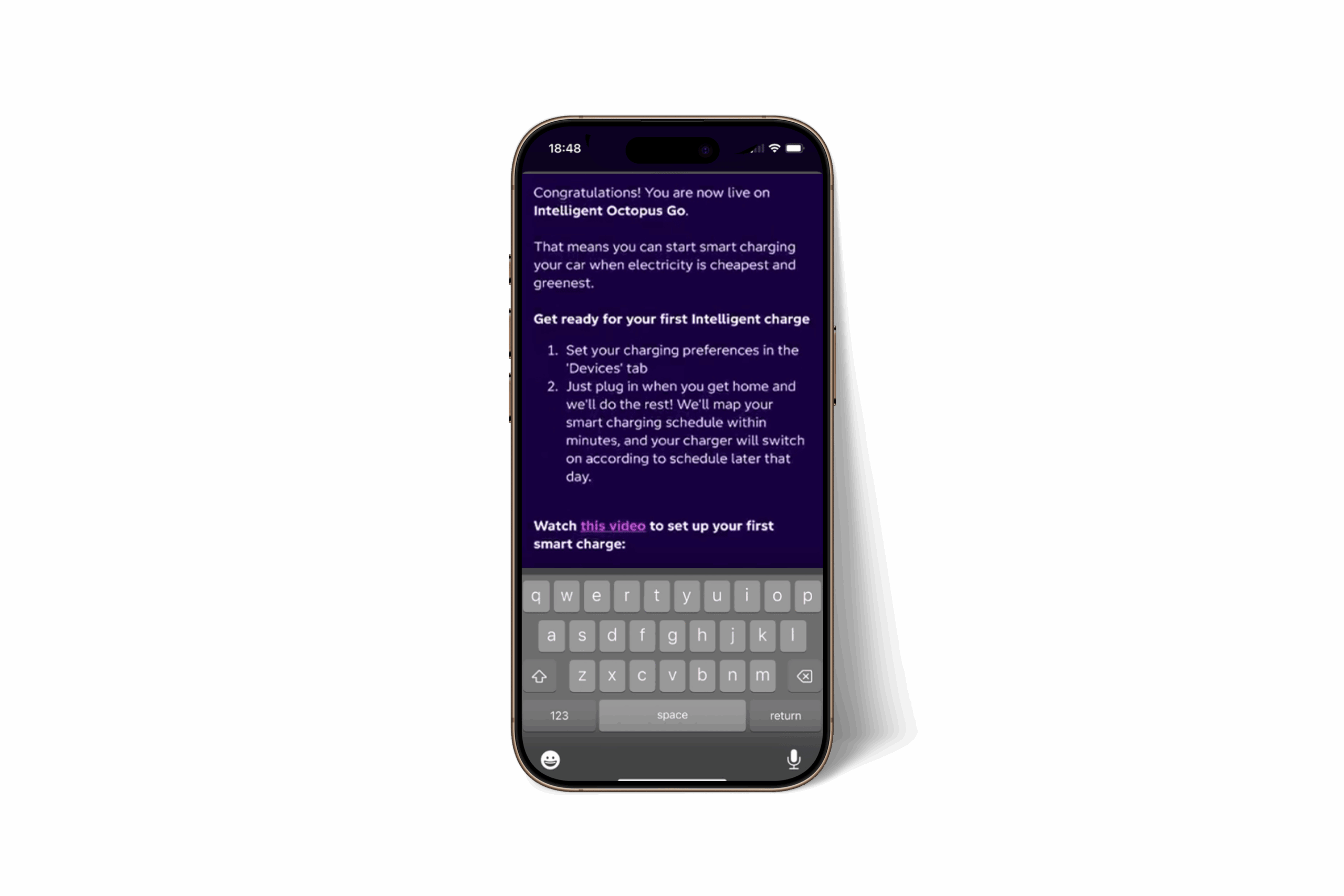
✅ Final Step
Once linked, Octopus will run a quick test charge. After that:
- Your Indra schedules will be disabled (Octopus controls charging now).
- You can still use solar integration, charger locking, and fleet expense features in the Indra App.
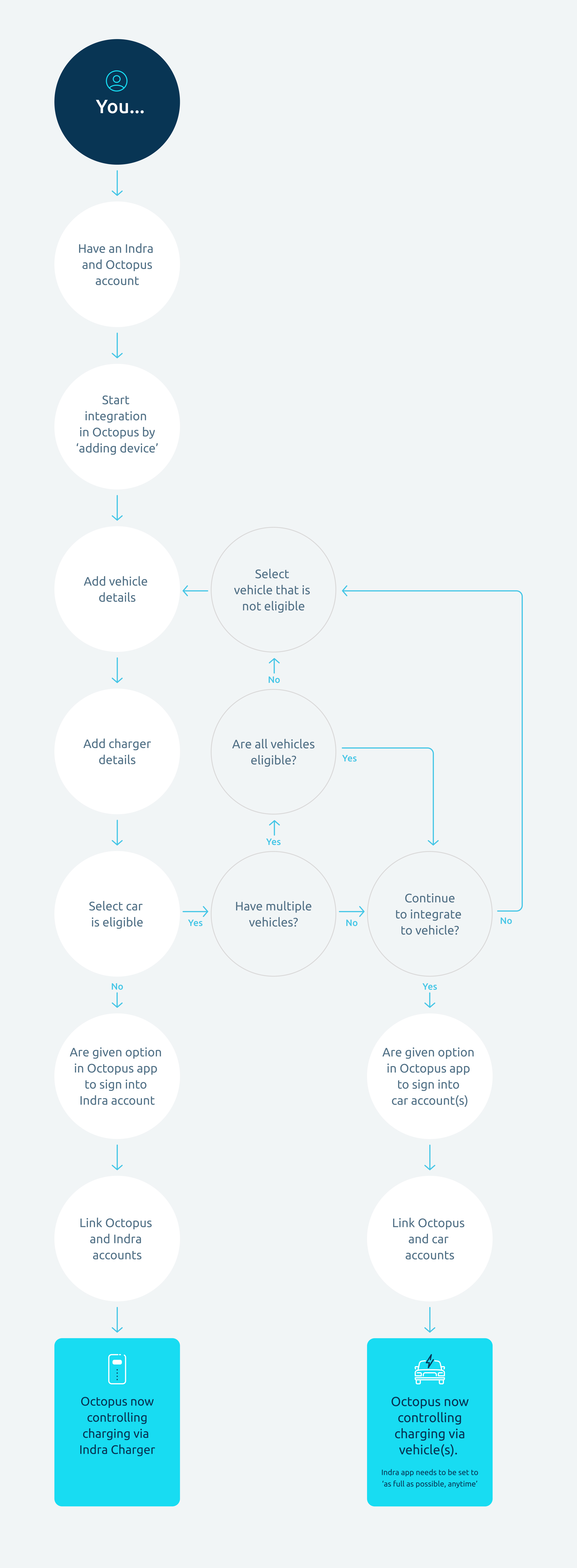
For a clear explanation, view our flow diagram for the steps to take to integrate your Intelligent Octopus Go tariff with your car or charger.
Charging with Intelligent Octopus Go
- Set your Ready By Time and Charge to Add (%) in the Octopus App.
- Octopus will schedule charging during the cheapest slots.
- Don’t set schedules in the Indra App—they won’t work.
Note: You do not need to set a schedule in the Indra App. If you try to set a schedule it will fail when you try to apply it.

Setting your charging preferences
Use the Octopus Energy App to tell the system when you need your car charged and how much charge you want to add.
Ready By Time ⏰
This is the time you’d like your vehicle to be fully charged after you plug it in.
Example: If you set 7:00 AM, Octopus will make sure your car is ready by then.
Charge to Add (%) 🔋
This is how much additional charge you want to add to your battery (in %).
⚠ Important: This is not the same as your target battery level.
Example: If your car is at 40% and you set Charge to Add as 50%, the system will charge until you reach 90%, not 50% total.

Cost Reporting 💰
Because of the way Intelligent Octopus Go works, Indra can no longer show per-charge or summary costs in the app.
Your Indra history will still display energy used and miles driven but not cost.
👉 To view your charging costs, check your Octopus Energy bill.
Locking Your Charger 🔒
You can still lock and unlock your charger anytime using the Indra App.
Boost / Bump Charging ⚡
Need an instant top-up?
- Press the Boost button on the front of your Indra charger.
- Or use the Indra App.
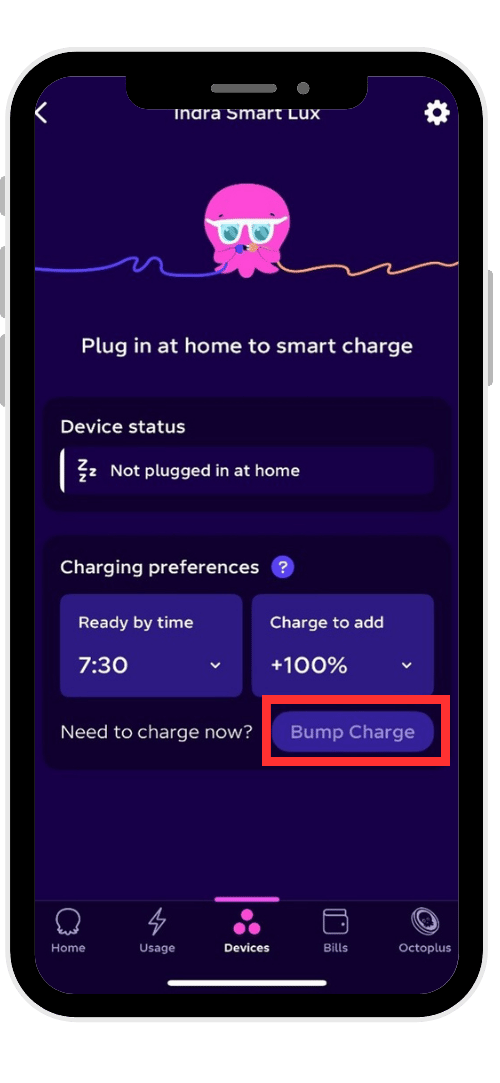
- Or use the Octopus Energy App via the ‘Bump Charge’ feature.
Note: Boost/Bump charging starts immediately at the highest power available.
This is not an Octopus-optimized charge, so it will not qualify for the low Intelligent Octopus Go rate.
It will be billed at your standard energy rate per kWh.
FAQs
Octopus won't give me the option to connect to my charger. What do I do?
Follow These Steps:
- Complete the initial setup as described in the guide above.
- When you try to connect the Octopus App to your car, if the car is not compatible, the app will open the Indra login screen.
- Enter the email address associated with your Indra account (even if it’s different from your Octopus account).
👉 Click Continue.
📲 Enter the code in the app and click Continue.
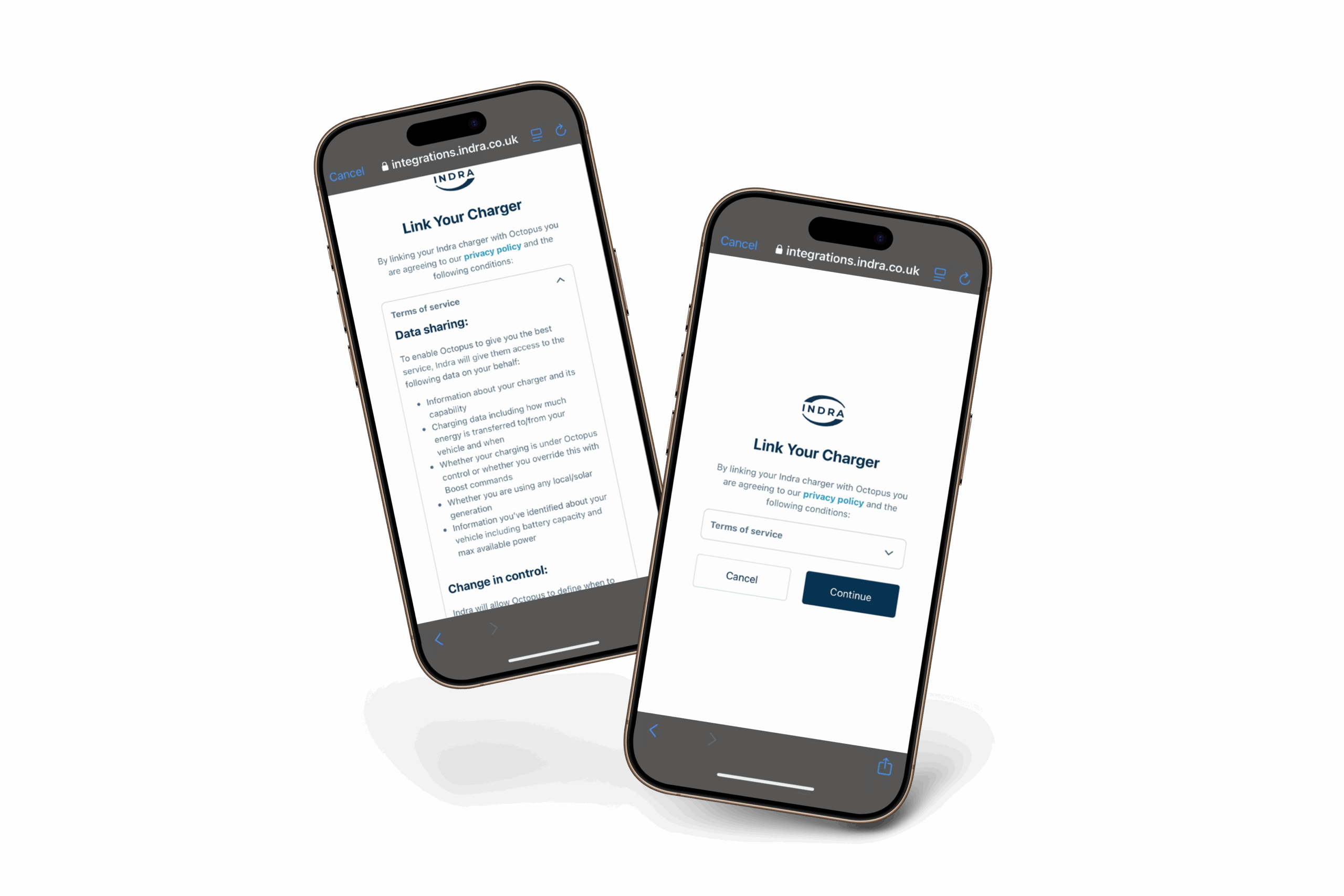
5. You’ll now see the Link Your Charger screen.
✅ Review the Terms of Service (explains how Octopus and Indra share data and control charging).
👉 Click Continue to finish linking.
If you connect Octopus Intelligent through your vehicle, you’ll need to set a schedule in the Indra App:
- When to charge: ✅ Anytime
- Charge type: ✅ As full as possible
This ensures the charger offers power at all times, while Octopus controls when to charge via the car.
Which app do I use once I'm using Intelligent Octopus Go?
When using Intelligent Octopus Go you will set a "Ready by time" and the amount of charge you wish to add into the Octopus App and Octopus will decide on how it schedules your charge.
Scheduling functions in the Indra App will be disabled. However, you can still use your Indra App for other functions such as "Lock charger" which prevents unauthorised users from using your charger.
How do I disconnect From Octopus Intelligent?
Select your linked device
Select Disconnect Device.
Confirm when prompted.
Can I use my Solar Energy with Octopus Intelligent Go?🌞
✅ This means you’ll benefit from low Octopus rates and use your own solar energy whenever it’s available.
If Octopus Intelligent Go sends a charging command while you’re producing solar:
- The charger will charge at full rate (e.g., 7kW).
- It will use all available solar plus top up from the grid.
Example:
☀ Solar producing 2kW
⚡ Charger charging at 7kW
➡ 5kW will come from the grid, 2kW from solar.
Can I use Intelligent Octopus Go with my Indra V2H Charger?🔄
However, Octopus occasionally accepts new users onto their Power Pack tariff which can be supported via Indra’s V2X chargers via our Octopus/Kraken integration.
👉 Contact Octopus to find out more.
Which app do I use once I'm using Intelligent Octopus Go?
🔒 Lock Charger – Prevent unauthorized use.
🌞 Solar Charging – If enabled.
Troubleshooting
‘Unable to Control Your Device’ Notifications ⚠️📱
If you see this message in the Octopus Energy App, it usually means your charging preference is set too high.

Why does this happen?
If you set Charge to Add (%) 🔋 to more than your battery can accommodate, Octopus may send notifications saying it’s unable to control your device.
How to fix it:
- Select a lower percentage for Charge to Add.
- Double-check that the vehicle details you provided to Octopus (make, model, battery size) are correct.
I’m Unable to Do a Test Charge🔌
Step 1: Check Charger Status
Before plugging in your vehicle, make sure your charger is showing the normal solid white light on the front panel (including the Indra logo).
⚪ White light = ready to charge
❌ If it’s not white, please contact Indra Customer Support.
Step 2: Check Vehicle Settings
Ensure your vehicle isn’t preventing charging—for example:
- Battery might already be full.
- Charging restrictions set in your car’s settings.
Random Delay ⏳
What is Random Delay?
Random Delay is a feature that staggers charging start times to avoid grid overload.
Does it apply to Octopus Intelligent Go or other flex integrations?
No. Random Delay does not legally apply for flex integrations like Octopus Intelligent Go.
These services need to react quickly to grid signals, so Random Delay can interfere with their operation.
Comments
0 comments
Please sign in to leave a comment.